
Step 1: Obtain Access
- Sign Up for Participation: First, you are required to sign up for access to the Co-Streaming Battle feature. Please follow the instructions provided through official channels to complete the registration. Upon approval, you will be granted access to the feature.
- Open the Floating Widget: Once access has been successfully granted, open the floating widget sidebar in the live streaming interface.
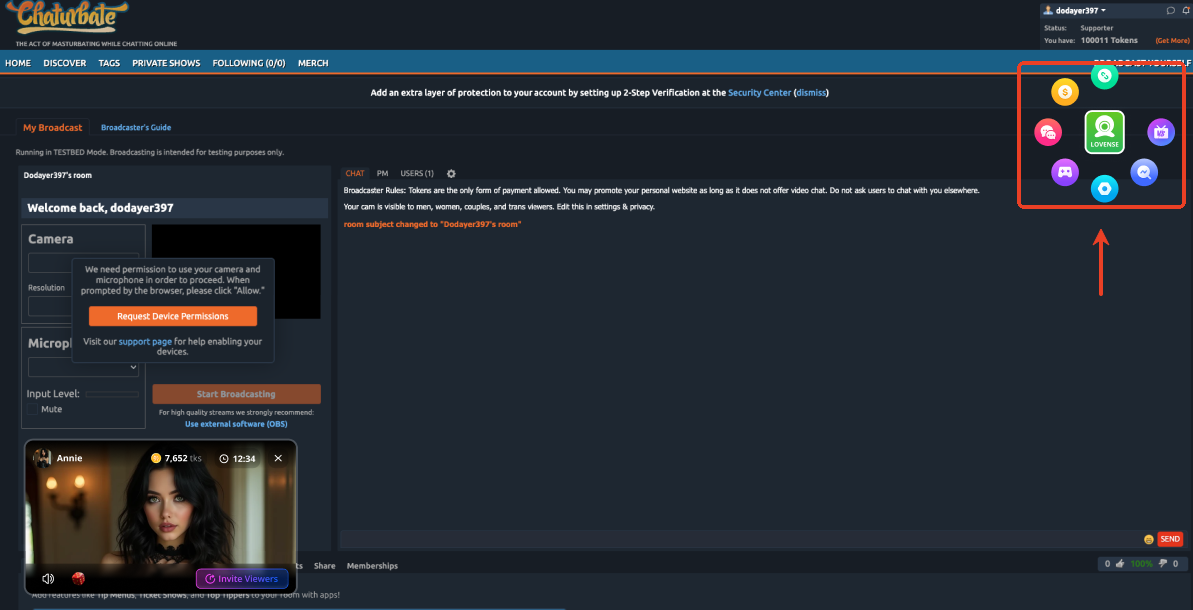
Step 2: Enable the Feature
- Click [Co-Streaming] Permission: In the sidebar menu, locate and click the [Co-Streaming] icon to enable the battle feature.
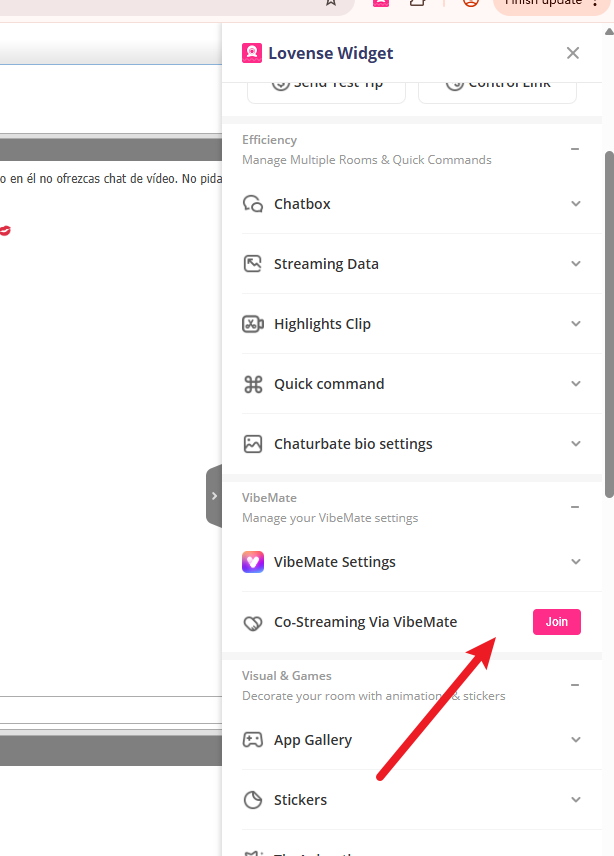
Battle Mode Description
Co-streaming Battle offers two battle modes. You may choose according to your preference:
Mode 1: Auto-Match Mode
- Enter the Mode: On the Co-streaming feature interface, click the [Get Started] button. The system will automatically guide you into the new "Battle" mode.
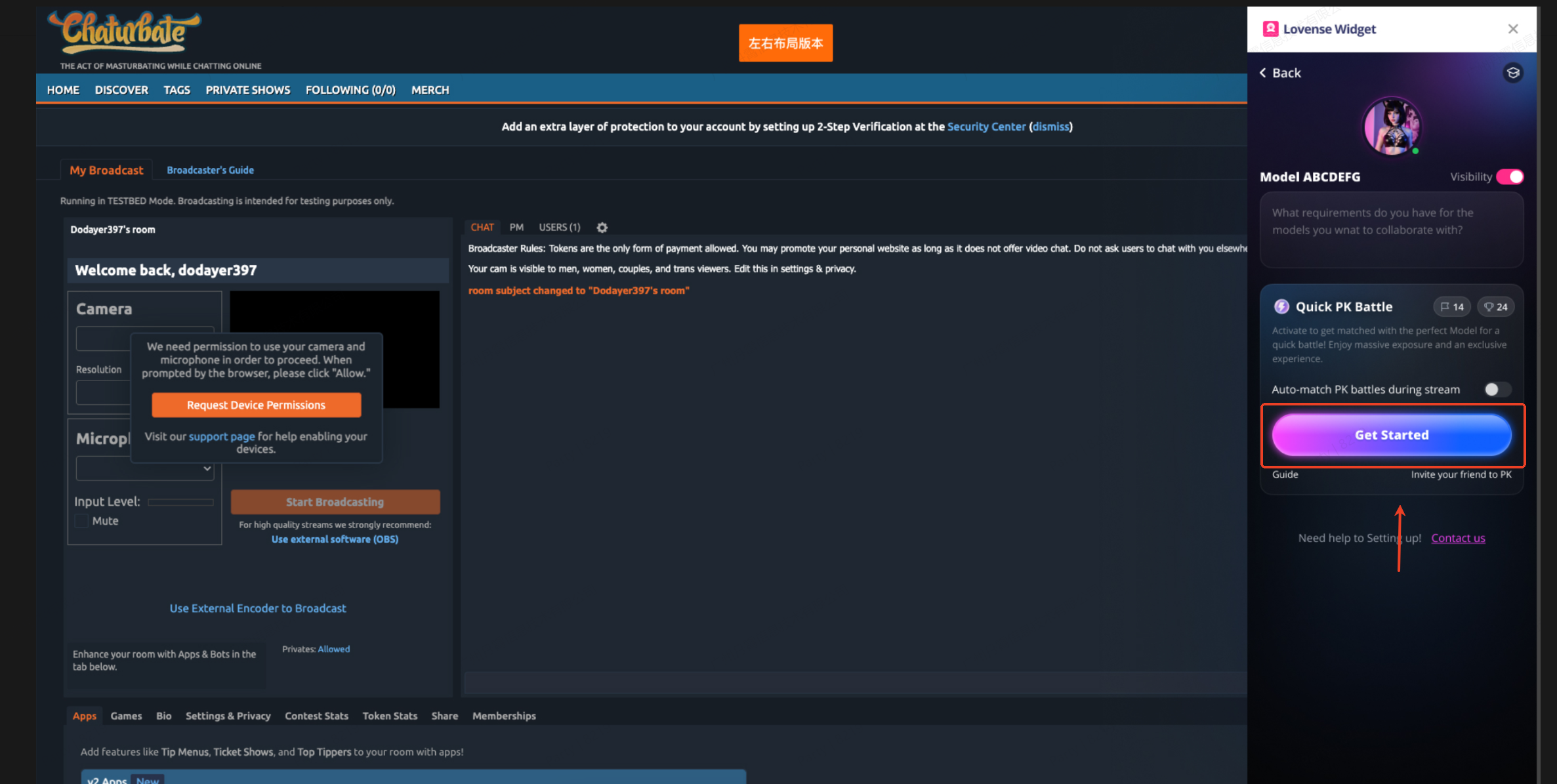
- Intelligent Matching: Upon entry, the system will intelligently screen and match you with a Battle participant of comparable skill level based on your live streaming characteristics (such as style, audience size, etc.).
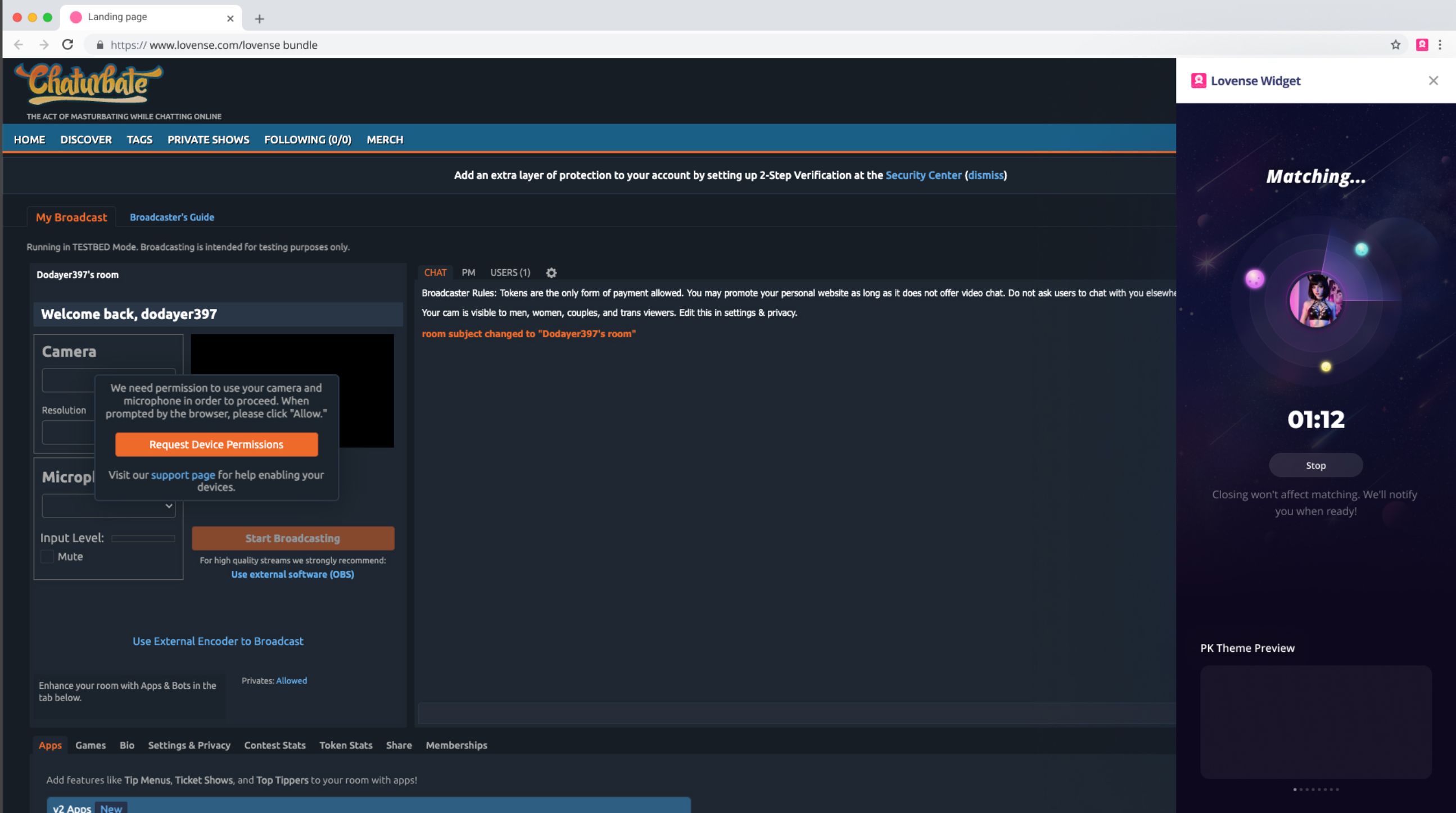
- Successful Match:When a match is successfully established, the opponent's live stream will appear in the lower-left corner of your interface.You will have a one-minute preparation period. During this time, you can familiarize yourself with your opponent and adjust your status.
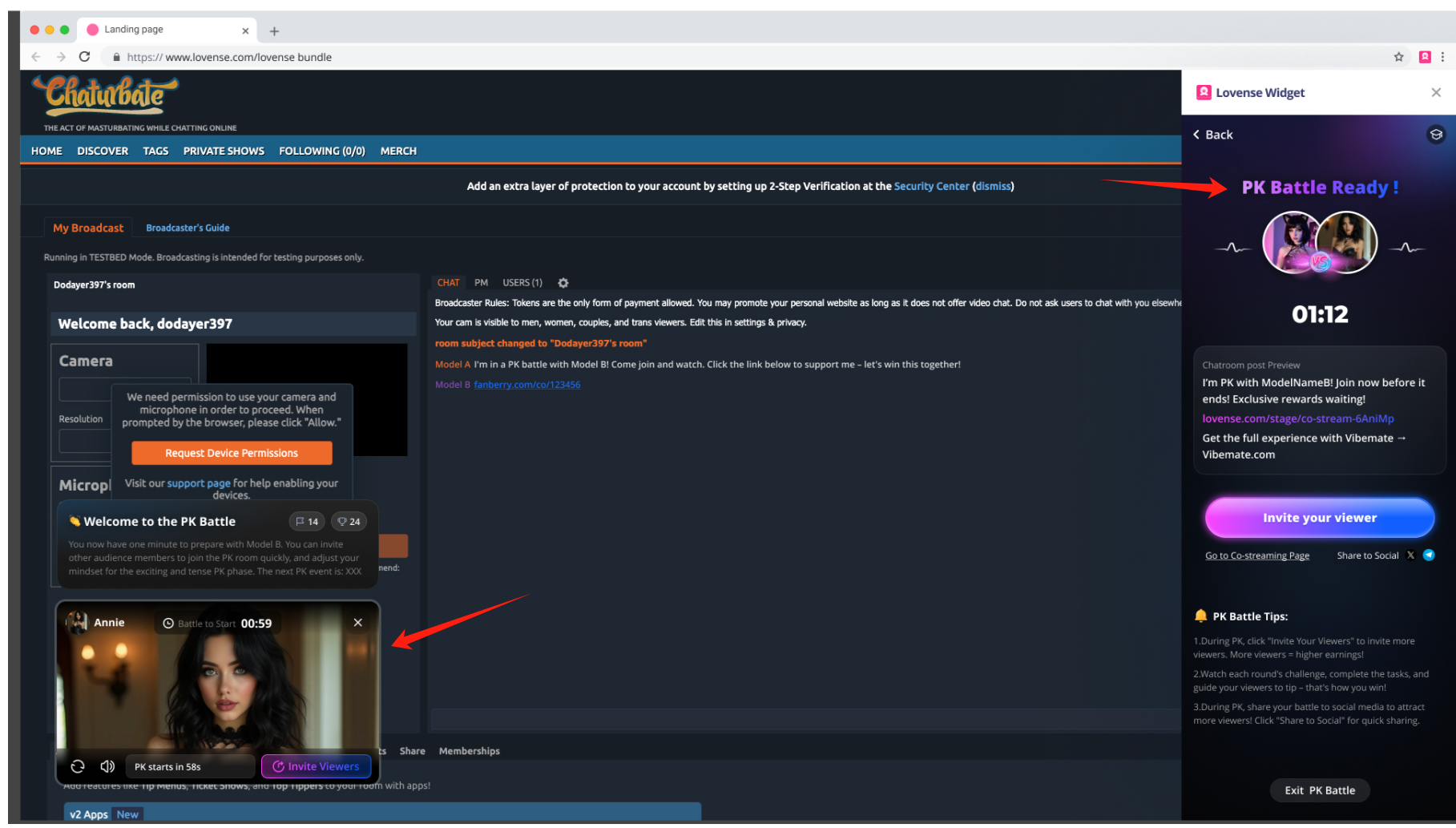
- Invite Viewers:You may click the [Invite Your Viewer] button to generate an invitation link. Share it to your fan group or on your social feed to invite viewers to join your live room and support you.
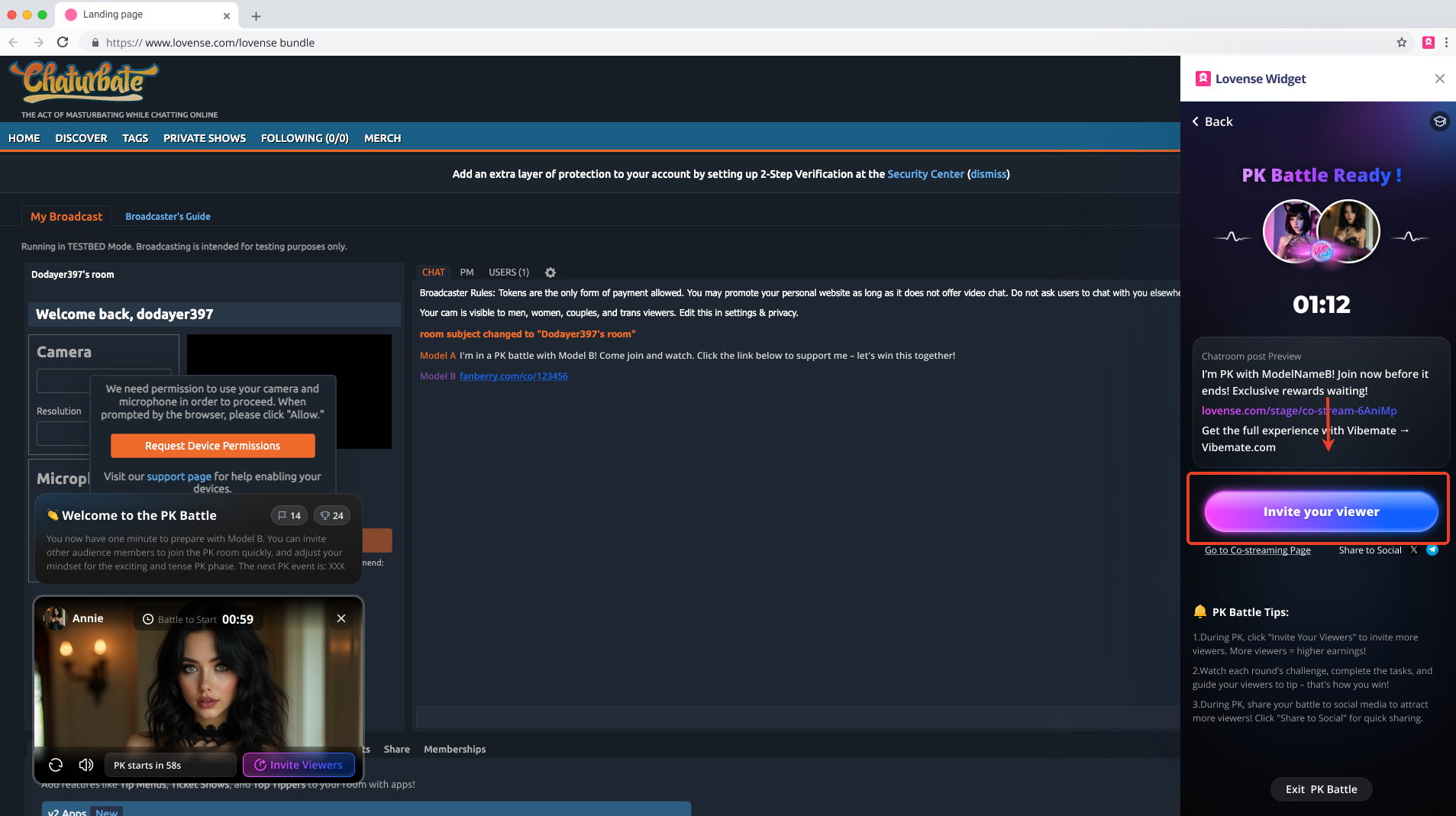
- Theme Script:During the preparation period and throughout the Battle, the current battle theme prompt will be displayed in your lower-left corner.
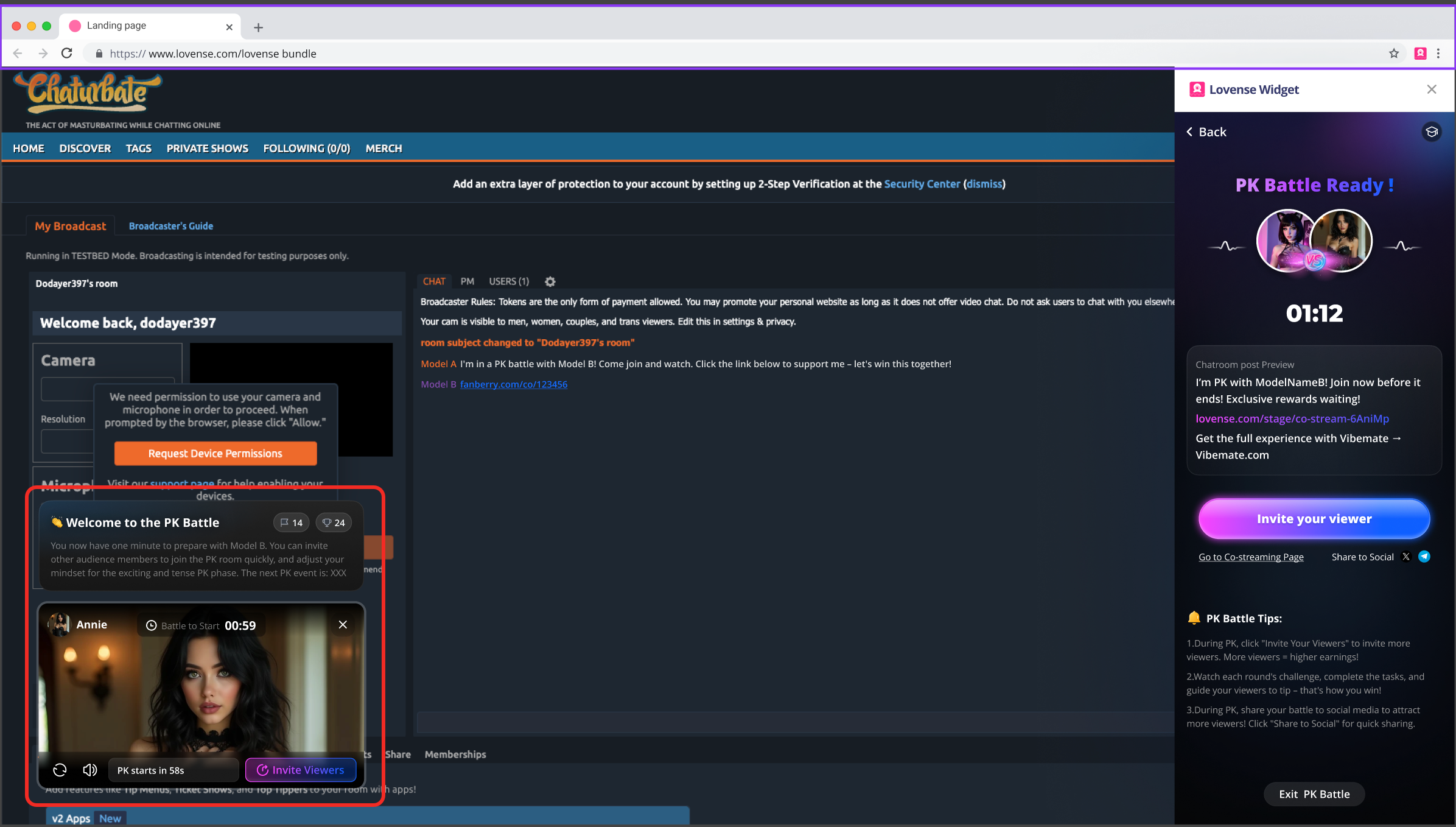
Important Note: It is highly recommended that Models participating in the Battle perform according to the currently displayed theme. This theme will be shown in real-time on the viewer interfaces of both you and your opponent. A clear and engaging theme effectively captures viewers' attention and sparks their interest, encouraging them to send more gifts and helping you secure the ultimate victory!
Mode 2: Invite Friend Mode
If you prefer not to use the auto-match mode, you may choose this mode to battle with a friend you know.
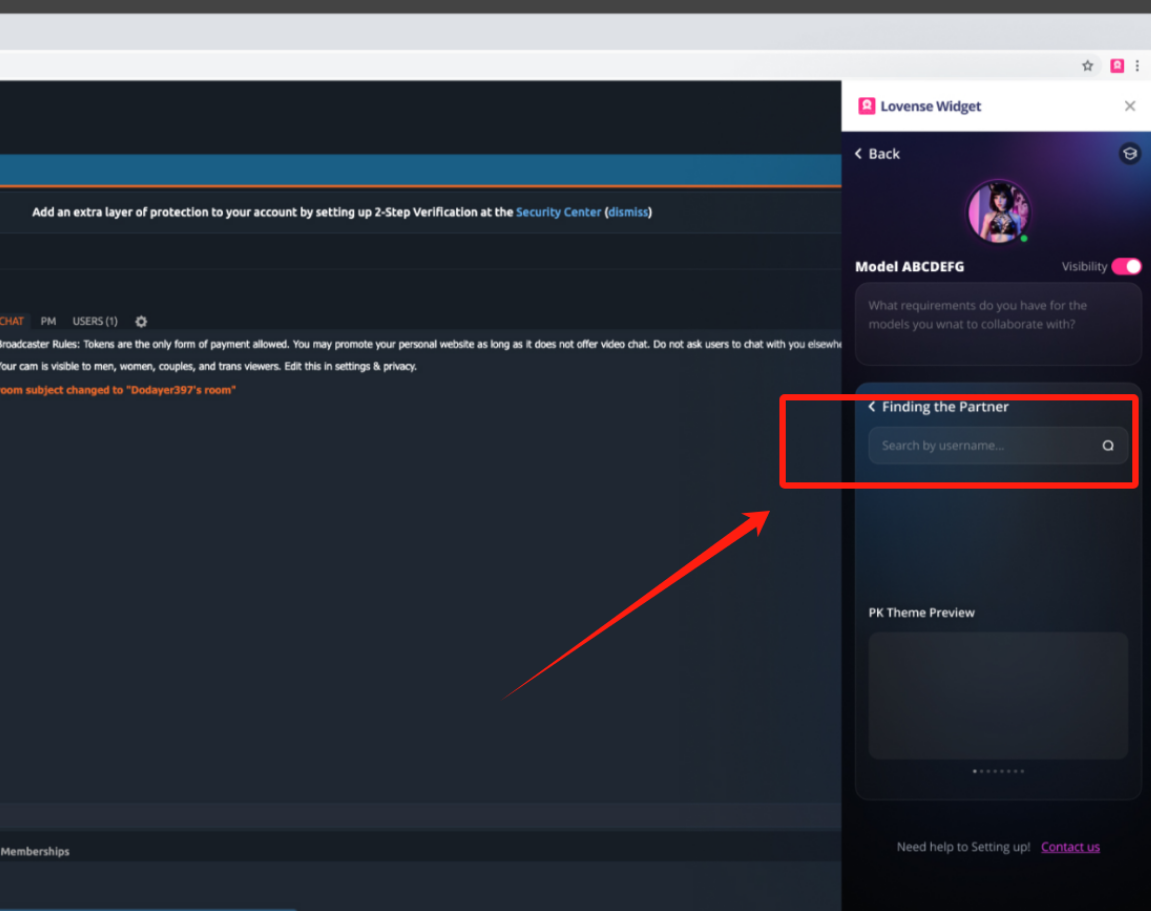
- Select Mode: On the main interface, select [Invite Friend Mode].
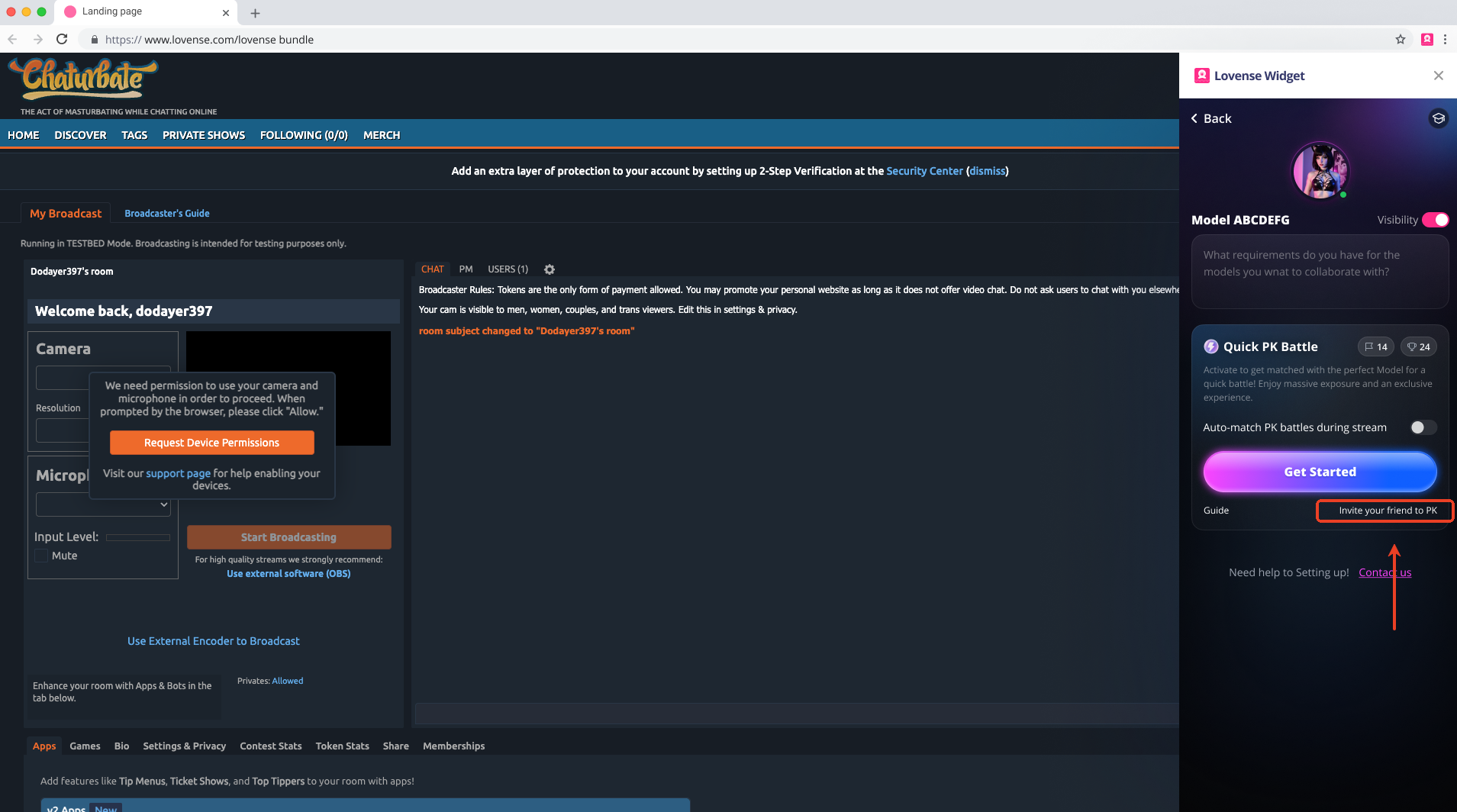
- Send Invitation: In the input field, accurately enter your friend's website nickname, then click the [Match] button. (Please note: Ensure that your friend has also registered and successfully obtained access to the Co-Streaming Battle feature; otherwise, the invitation will not be valid).
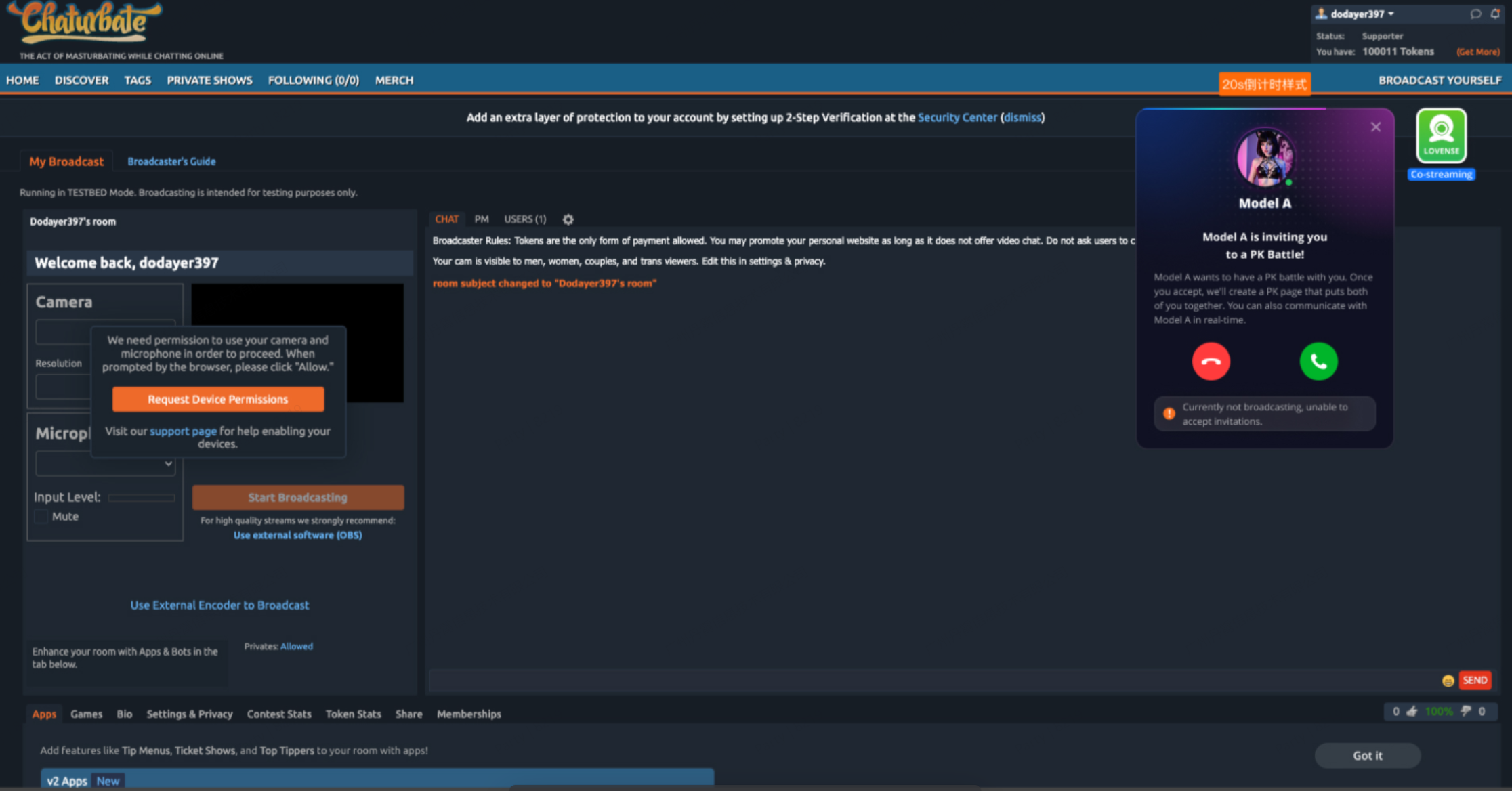
- Friend Confirmation: After the invitation is sent, your friend will receive a pop-up notification. Once your friend clicks [Accept], both parties will directly enter the Battle preparation phase. The subsequent process is the same as that of the auto-match mode.
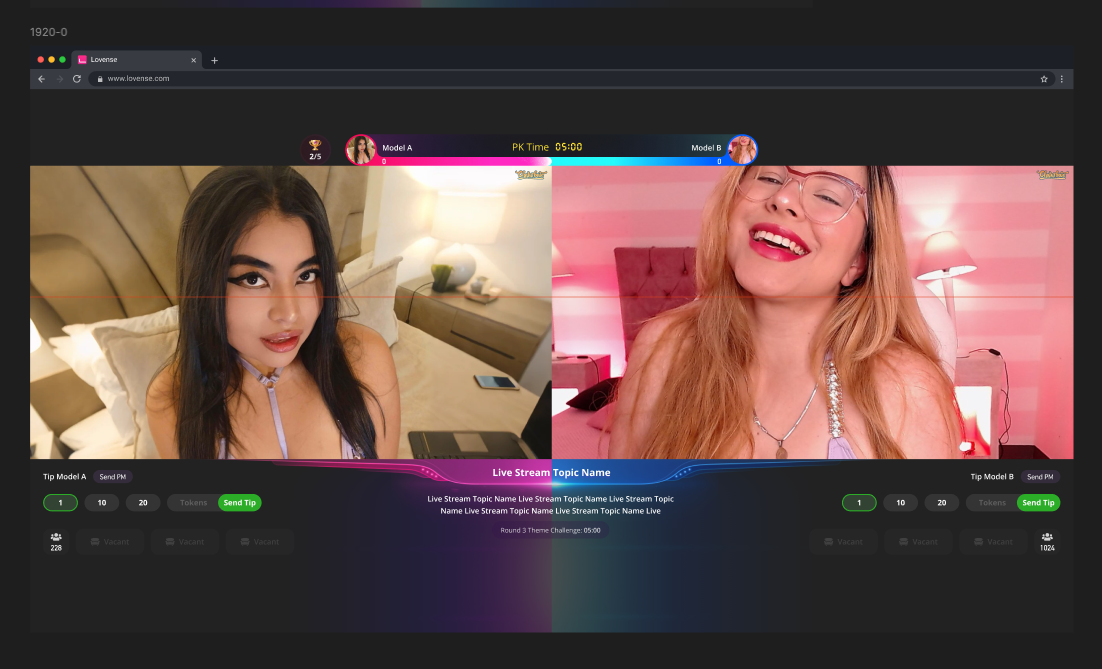
Friendly Tip – Viewer Perspective
- After entering your live room, your viewers will also be able to clearly see the current Battle theme and the real-time scores of both parties. They will engage in interaction and send gifts based on the appeal of the theme and your outstanding performance.
💖 Most Frequently Asked Question from Models
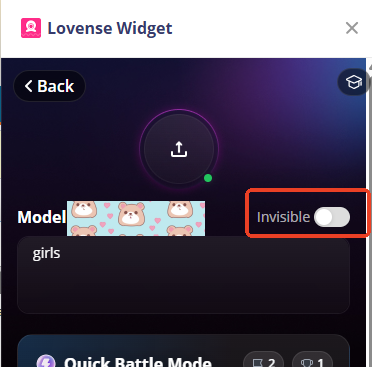
“You Have Disabled the Co-Streaming Feature”
If you see the message “You have disabled the Co-Streaming feature” when trying to start Co-Streaming, it means that the Co-Streaming feature has been turned off. To resolve this issue, locate the [Invisible] switch and turn it on, as shown in the image. After enabling the switch, you should be able to start and use Co-Streaming normally.
We wish you an enjoyable experience with the new Co-Streaming Battle feature! May your engagement soar and your popularity reach new heights! Should you have any questions, please feel free to contact our official customer service~